Add us to your Squarespace website.
Make Wondaur an administrator on your Squarespace website, so we can work on it for you. You never share your password and you stay the owner. It takes about two minutes.
Before you start
- Use a computer. The steps are easiest to follow on a bigger screen.
- Sign in with the Squarespace account that owns the website, or one that’s already an administrator. Only they can invite people.
- The email to invite is hi@wondaur.com.
Open your website
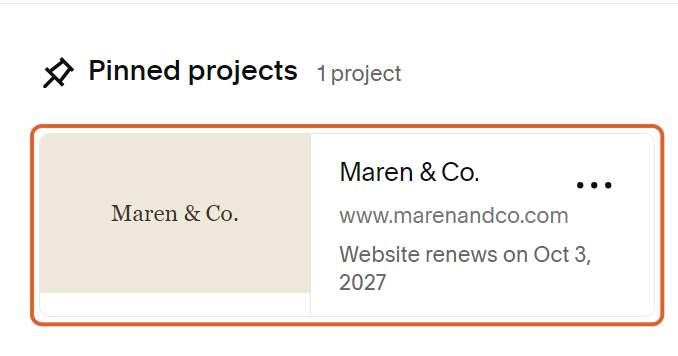
On a computer, sign in to your Squarespace account. On your dashboard, select the website you want us to work on. Your dashboard may look a little different from this picture.
Select the gear icon
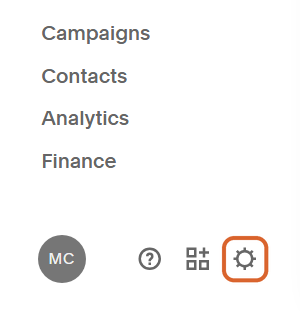
At the bottom of the menu on the left, select the gear icon. That’s Settings. You may need to scroll down the menu to see it.
Open Permissions & Ownership
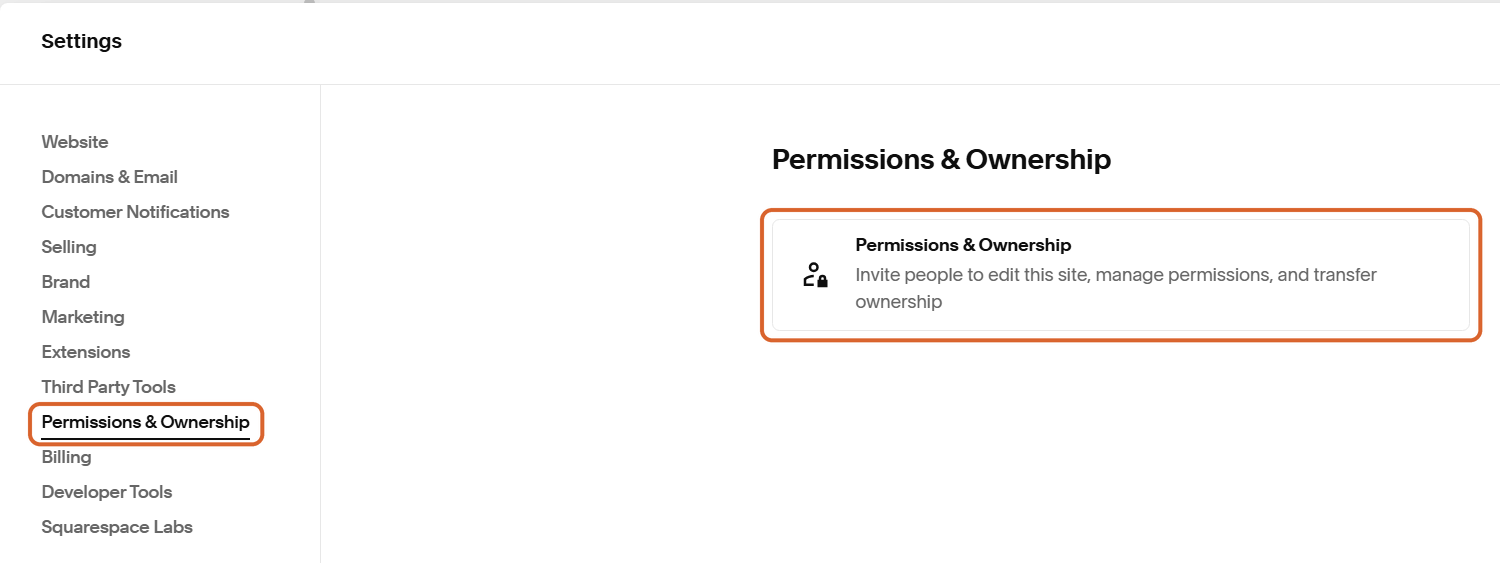
In the Settings list, select Permissions & Ownership. Then select the Permissions & Ownership box that shows on the right.
Select Invite Contributor
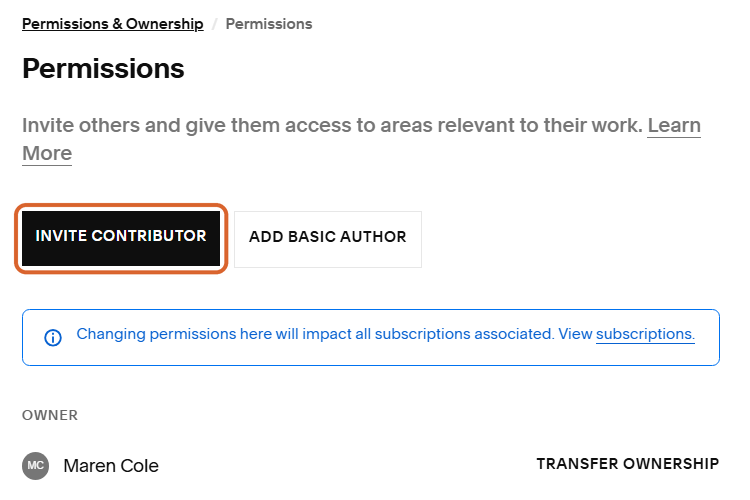
You’re on the Permissions page. Select Invite Contributor.
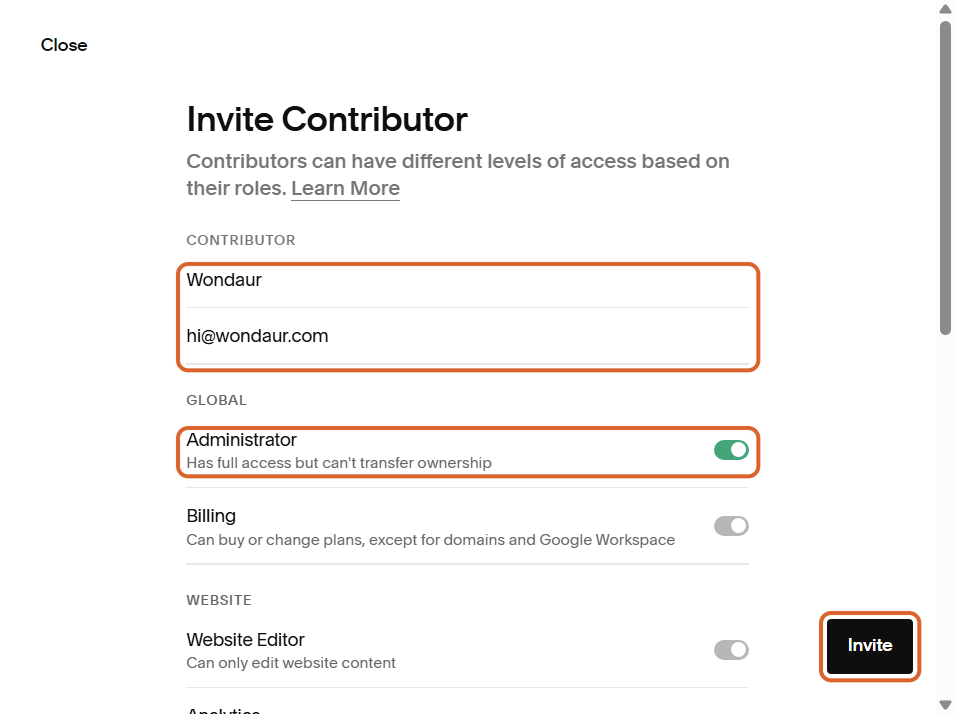
Add our details, turn on Administrator, then Invite
In the name box, type Wondaur. In the email box, type hi@wondaur.com. Turn on Administrator. It’s the first switch, and it’s the one we need. Then select Invite.
That’s it. What happens next
Squarespace emails us the invitation and we accept it, usually within one business day. Until then, you’ll see us under Invites Sent on the same Permissions page.
Administrator gives us full access to the website, so please only invite us when you’re happy for us to work on all of it, including its settings and billing. The one thing an administrator can’t do is transfer ownership.
You stay the owner. To take our access away at any time, go back to Permissions, select our name and remove us.
Need us to work on your domain too? If it isn’t part of this website, follow our guide to adding us to your Squarespace domain.
If something doesn’t match
- We didn’t get the invitation. Under Invites Sent, select our name, copy the invitation link and email it to us.
- You typed something wrong. Under Invites Sent, select the … next to our name, then Cancel Invite, and invite us again.
- Squarespace won’t let you add us. Some plans limit how many people can have access. The Basic plan and some older plans allow one contributor as well as the owner. If that place is taken, remove the other contributor first or tell us and we’ll work out another way.
- You don’t see Invite Contributor. You may be signed in with an account that isn’t the owner or an administrator. Switch accounts, or ask the owner to follow these steps.
- Squarespace asks for a code. That’s normal. It’s checking it’s really you. Type in the code it sent you. Please don’t send it to us.
- Squarespace’s screens look a little different. Squarespace changes its screens from time to time. The words stay the same: Settings, Permissions & Ownership, Invite Contributor, Administrator.
Stuck on a step? Email hi@wondaur.com or send us a message from your dashboard, and we’ll walk you through it.
Stuck on a step? Ask us.
A real person reads every message and writes back.